



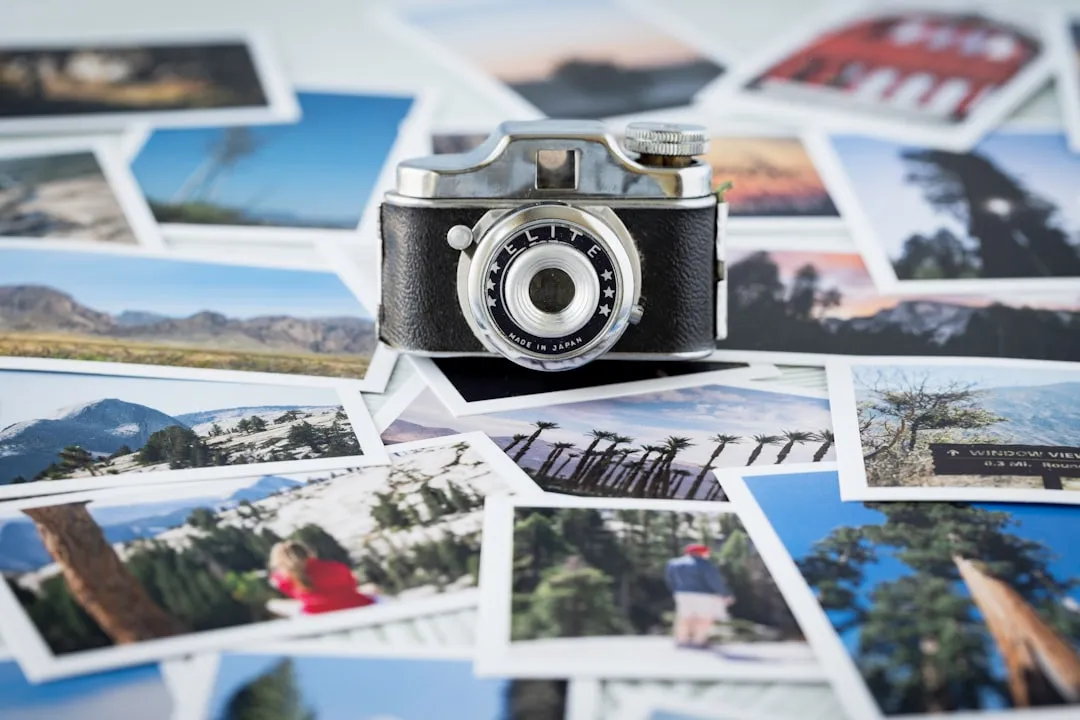
You've got boxes of old family photos gathering dust in the attic, and every time you dig them out, you worry about fading, water damage, or just losing them forever. The good news? Digitizing those precious memories is more accessible than ever, and you don't need to be a tech wizard or break the bank to do it right.
After spending three years digitizing my family's 8,000-photo archive spanning 1920-2000, testing a dozen scanners, and helping five friends tackle their own collections, I've learned what actually works—and what's just marketing hype.
The challenge isn't just about making digital copies—it's about preserving quality, organizing decades of memories, and choosing methods that won't eat up your entire weekend. Whether you're dealing with fragile century-old prints, slides your grandparents took in the '60s, or negatives you've never actually seen developed, there's a digitization approach that fits your situation. This guide breaks down the most effective techniques, the tools you'll actually need, and the practical steps to transform your analog archive into a digital collection you can share, backup, and enjoy for generations to come.
Understanding your digitization options: scanners vs. smartphone apps vs. professional services
The landscape of photo digitization has evolved dramatically, giving you three main pathways to choose from based on your budget, time, and quality requirements.
Flatbed scanners remain the gold standard for home digitization, offering precise control over resolution, color correction, and output format. Modern consumer scanners like the Epson Perfection V600 and Canon CanoScan LiDE 400 can capture images at 600 to 6400 DPI (dots per inch), with higher DPI settings preserving more detail from your original prints. The main advantage here is consistency—you're working with dedicated hardware designed specifically for this task, which means predictable results across hundreds or thousands of photos. The downside? Speed. Scanning photos individually, especially at higher resolutions, can feel glacially slow when you're facing boxes of prints. At 300 DPI, expect 30-45 seconds per photo including preview and save time. At 1200 DPI, this jumps to 2-3 minutes per photo.
Smartphone scanning apps have emerged as the convenient middle ground, leveraging your phone's increasingly capable camera and AI-powered image processing. Apps like Google PhotoScan, Microsoft Lens, and Photomyne use edge detection to automatically crop photos, perspective correction to eliminate distortion from angled shots, and lighting adjustments to compensate for glare or shadows. The quality won't match a high-end scanner, but the speed advantage is undeniable—you can digitize a photo in seconds rather than minutes. When I tested five popular smartphone apps side-by-side on the same set of 20 photos, I found that PhotoScan delivered the most consistent results, though all struggled with glossy photos under standard room lighting. This approach works best for snapshots and standard prints where archival-grade preservation isn't the primary goal.
Professional digitization services handle the heavy lifting for you, typically charging per photo or by bulk pricing tiers. Services like ScanMyPhotos and Legacybox charge approximately $0.17-0.50 per photo depending on volume, with typical turnaround times of 2-4 weeks. These services use commercial-grade equipment and can process specialized formats like slides, negatives, and even damaged photos that require restoration work. You're paying for expertise, equipment you don't own, and time you don't have to spend. The trade-off is cost and trust—you're shipping irreplaceable photos to a third party and waiting weeks for their return.
Here's how these trade-offs play out in practice: That speed limitation of scanners becomes critical when you're facing 500+ photos. The smartphone app's quality compromise matters more for photos you might want to enlarge and frame. And the professional service's cost adds up quickly, but so does your time—at $0.30 per photo for 300 photos versus 15 hours of DIY scanning, you're essentially paying yourself $6/hour to do the work.
The right choice depends on your specific situation: volume of photos, condition and formats you're working with, your available time, and how much quality matters for your intended use. For most DIY enthusiasts, a combination approach often works best—using a scanner for treasured heirlooms and special photos while relying on smartphone apps for the bulk of everyday snapshots.
PRO TIP: Before committing to any method, test your workflow on 20 representative photos covering different sizes, conditions, and eras. This 30-minute investment will reveal whether your chosen approach actually works for your specific collection before you're 200 photos deep and discovering problems.
Setting up your scanning workflow for quality and efficiency
Creating an effective scanning workflow transforms what could be a frustrating marathon into a manageable, even enjoyable project. Let's break down the critical decisions that will shape your entire digitization experience.
Resolution settings make or break your digitization quality, but bigger isn't always better. Understanding DPI starts with your end goal. For standard 4x6 inch prints you plan to view on screens or share online, 300 DPI provides excellent results while keeping file sizes reasonable—creating roughly 1200x1800 pixel images perfect for displays and social media. If you're digitizing photos you might want to enlarge later or prints with fine detail you want to preserve, 600 DPI offers a solid middle ground. Reserve 1200 DPI and above for small photos you plan to significantly enlarge, historical documents with tiny text, or archival preservation where you want maximum future flexibility.
Here's the key insight: doubling your DPI quadruples both your file size and scanning time. A 4x6 photo at 300 DPI creates a 3-5MB JPEG and takes 30-45 seconds to scan. That same photo at 600 DPI becomes 12-20MB and takes 90-120 seconds. At 1200 DPI, you're looking at 50MB+ and several minutes per photo. Choose intentionally based on each photo's importance and intended use rather than scanning everything at maximum resolution "just in case."
File format selection impacts both quality preservation and future usability. TIFF files provide lossless compression, meaning zero quality degradation, making them ideal for archival masters of your most important photos. The downside is file size—a single scanned photo can easily exceed 50MB. JPEG offers a practical compromise for most photos, providing good quality at manageable file sizes through lossy compression. Save your scans at maximum or high JPEG quality settings (level 10-12 in most software, or 90-100% quality) to minimize compression artifacts.
Consider a hybrid approach that builds on these format differences: save archival masters of irreplaceable photos as TIFF files, then create JPEG copies for everyday sharing and viewing. This strategy gives you maximum preservation flexibility for treasures while keeping your everyday photo library manageable. When I digitized my grandmother's wedding photos from 1948, I saved TIFFs of the originals but work with JPEG copies for sharing with family—those TIFFs remain untouched masters I can return to for any future use.
Batch processing techniques dramatically improve efficiency without sacrificing quality. Organize photos into logical groups before you start—by decade, by person, by event—so your digital files naturally inherit useful structure. This pre-organization pays dividends later when you're trying to find specific photos among thousands of files. Clean your scanner glass between batches to prevent dust spots from appearing on multiple scans—I learned this the hard way after scanning 50 photos with the same dust speck appearing in the same spot on each one.
Use your scanner software's multi-image detection feature if available, which lets you place several photos on the scanner bed simultaneously and automatically saves them as separate files. Most scanning software like Epson Scan and VueScan includes this capability. Create a simple naming convention before you begin (like "1985_Summer_Vacation_001.jpg") so you're not stuck renaming hundreds of files later. Include dates using YYYY-MM-DD format, which sorts chronologically automatically, plus descriptive keywords that help identify content at a glance.
Now let's address the physical setup that supports this digital workflow. Environmental setup matters more than you might think—your workspace directly impacts both efficiency and photo safety. Work in a clean, well-lit space where you can spread out and sort photos without risking spills or damage. Wear inexpensive cotton archival gloves when handling old or valuable prints to prevent oil transfer from your fingers, which can cause long-term damage to aging prints. Keep a microfiber cloth and compressed air handy for removing dust from photos before scanning—spending five seconds cleaning a photo saves two minutes editing out dust spots later in post-processing.
PRO TIP: Scanner software's auto-settings are like your phone's auto-correct—occasionally helpful, often surprisingly wrong. Always preview your scans before committing to batch processing. I once auto-scanned 100 photos only to discover the software had decided they were all documents and applied text-sharpening that made faces look bizarre.
Handling special formats: slides, negatives, and damaged photos
Moving beyond standard prints introduces new challenges that require specialized approaches and sometimes different equipment. Here's where understanding the underlying principles of light and image capture becomes especially important.
Slide digitization demands either a dedicated slide scanner or a flatbed scanner with a transparency adapter. Dedicated slide scanners like the Plustek OpticFilm 8200i ($449) or budget-friendly Kodak SCANZA ($169) typically produce superior results because they're optimized for the small frame size and light transmission requirements of slides. The key difference from print scanning is that slides require backlit illumination—light passes through the transparent film rather than reflecting off a print surface.
Position slides in the carrier with the emulsion side (the duller, slightly textured side) facing the sensor. Clean slides gently with a blower brush before scanning—dust and fingerprints become dramatically more visible when backlit than they ever appeared during projection. I discovered this when my grandfather's pristine-looking slides revealed every fingerprint and dust speck under the scanner's intense backlight.
Scan slides at higher resolutions than prints—at least 2400 DPI—because you're working with a much smaller original image area that you'll likely want to enlarge. Here's why this matters: a 35mm slide is roughly 24x36mm. At 2400 DPI, you're capturing approximately 2250x3400 pixels—enough to print at 8x12 inches or display on 4K screens without quality loss. This resolution captures the fine grain structure of the film while maintaining reasonable file sizes.
Negative scanning follows similar principles to slides but introduces the additional step of color inversion and orange mask correction. Most scanning software like VueScan and SilverFast includes negative conversion features that automatically invert colors and adjust for the orange mask found on color negatives. Black and white negatives are more straightforward to convert since they lack that orange base layer.
The challenge with negatives is that they reveal the photographer's original capture before any printing adjustments were made. That faded print you remember might actually come from a perfectly exposed negative that simply needs proper scanning and color correction. Handle negatives by their edges only—the image area is particularly vulnerable to scratches and fingerprints that will show in your final scans as white marks rather than the dark marks you'd see on prints. If your negatives are stored in protective sleeves, consider whether removing them risks more damage than scanning through the sleeve, which slightly reduces quality but preserves the physical negative intact.
Damaged photo restoration starts with gentle physical cleaning before scanning, but requires careful judgment about what's safe to attempt. Use a soft brush to remove loose dirt and debris. For photos stuck together, don't force them apart—you'll likely tear both photos rather than save either. Consider scanning them as-is or consulting a professional conservator for truly irreplaceable images. When I found my grandmother's wedding photos stuck together after a basement flood, a professional conservator safely separated them using humidity chambers and specialized techniques I couldn't replicate at home.
When scanning damaged photos, use the highest reasonable resolution to capture all remaining detail, giving yourself maximum flexibility for digital restoration. Tears, creases, and faded areas can often be dramatically improved using photo editing software after scanning, but you need that detail captured in the scan first—you can't add information that wasn't captured. For severely damaged photos of high sentimental value, professional restoration services like EverPresent or local photo restoration specialists combine specialized scanning equipment with expert retouching that's difficult to match at home.
Format-specific considerations extend to other materials you might encounter. Polaroids and instant photos often have textured surfaces that can create unwanted moiré patterns when scanned—experiment with slightly lower resolutions (200-250 DPI) or photograph them instead of scanning. Oversized photos larger than your scanner bed can be scanned in sections and digitally stitched together using free panorama software like Microsoft ICE or Hugin. Very small photos like wallet-sized prints benefit from higher DPI scanning (600-1200 DPI) to maintain detail when viewed at normal sizes on screens.
Organizing and preserving your digital photo archive
Creating the digital files is only half the battle—organizing and protecting them ensures your effort pays off for decades to come. This is where the organizational decisions you made during scanning either pay dividends or create ongoing frustration.
Folder structure and naming conventions provide the foundation for finding photos later. Create a hierarchical system that makes sense for your collection—many people use year/event structure (2024/Summer_Vacation) while others prefer organizing by person or location. Whatever system you choose, stay consistent throughout the entire collection. Include dates in your folder or file names using YYYY-MM-DD format, which sorts chronologically automatically. Add descriptive keywords that help identify content at a glance: "1987-07_Johnson_Family_Reunion_001.jpg" tells you far more than "IMG_001.jpg" when you're searching years later.
Here's a practical example of this system in action: When my sister asked me to find photos of our grandmother for her memorial service, I could instantly pull up the "1920s-1990s/Wilson_Family/Grandmother_Ruth" folder and had 200 relevant photos organized by decade. Without that structure, I would have been frantically searching through 8,000 unsorted files during an already emotional time.
Metadata and tagging add searchable information directly into your image files that transcends folder organization. Photo management tools like Adobe Lightroom ($9.99/month), Apple Photos (free with Mac), Google Photos (free with storage limits), or free alternatives like digiKam let you add tags, descriptions, location data, and people identifications that stay with the file even if it moves to different devices or platforms.
Invest time in adding this metadata for important photos—your future self will thank you when searching for "Grandma's 80th birthday" instantly surfaces the right photos from thousands of files. Consider using facial recognition features in photo management software to automatically group photos by person, though review the results since older photo quality and aging faces can challenge these algorithms. I've found facial recognition works beautifully for photos from the 1980s onward but struggles with my 1940s-1950s photos where print quality and fading reduce facial detail.
Backup strategies protect against the inevitable hardware failures, accidents, and disasters that threaten digital files. Follow the 3-2-1 rule: maintain three copies of your photos, on two different types of media, with one copy stored off-site. Let me break down why each number matters: The "3" protects against single device failure—when (not if) one copy fails, you have backups. The "2" ensures that no single technology vulnerability like cloud service shutdown or hard drive format obsolescence loses everything. The "1" off-site protects against localized disasters like house fires or theft.
Here's how this plays out practically: Your primary copy might live on your computer's hard drive, with a second copy on an external hard drive and a third in cloud storage. Cloud services like Google Photos, Amazon Photos, or Dropbox provide off-site protection against house fires or theft while making photos accessible from any device. External hard drives offer large storage capacity at low cost, but should be refreshed every 3-5 years as drives age and failure risk increases.
For truly long-term archival storage of your most precious photos, M-DISC claims archival lifespans of up to 1,000 years under proper storage conditions, based on manufacturer testing. You'll need a compatible burner like the ASUS BW-16D1HT ($100), and discs cost about $3-5 per 25GB disc. When I calculated storage needs for my 8,000-photo collection, the high-resolution archival masters totaled about 180GB—fitting on eight 25GB M-DISC discs at a material cost of $30 for century-plus preservation.
PRO TIP: Don't just set up backups and forget them. Schedule quarterly backup verification where you actually open files from each backup location to confirm they're readable. I learned this lesson when my "backup" external drive had been failing silently for six months—I had been dutifully copying files to a drive that wasn't actually writing them.
File format longevity deserves consideration for true archival purposes, building on our earlier discussion of TIFF versus JPEG. While TIFF and high-quality JPEG remain safe bets for the foreseeable future, technology changes over decades. Store your archival masters in widely-supported, non-proprietary formats that are likely to remain readable—TIFF, JPEG, and PNG are all safe choices backed by open standards. Avoid saving files in formats tied to specific software that might disappear. Periodically migrate your archive to new storage media and verify file integrity—don't let your digital photos sit untouched for a decade assuming they'll be fine.
If you're digitizing 2,000 photos at 300 DPI, plan for 6-10GB of storage for JPEG files, or 100GB+ if you're saving everything as TIFF archival masters. This capacity planning influences which cloud services and external drives make sense for your collection size.
Making your digitized photos actually useful and shareable
The ultimate goal isn't just creating digital files—it's making those memories accessible and enjoyable for yourself and others. This is where the organizational structure and metadata you created earlier transform from abstract preparation into practical capability.
Photo editing basics can dramatically improve your scanned images without requiring professional skills or expensive software. Free tools like the Google Photos editor, GIMP, or paid options like Adobe Lightroom ($9.99/month) include the essential adjustments you'll need. Focus on these fundamental improvements: adjust brightness and contrast to compensate for faded prints or poor original exposure, crop out damaged edges or scanner bed borders, use color correction to fix color shifts from aging prints or scanning artifacts, and rotate images to proper orientation.
Most photo management software includes these basic tools, and even modest adjustments can transform mediocre scans into presentable photos. Here's my approach: I spend 30 seconds on everyday snapshots doing basic brightness and rotation fixes, but invest 5-10 minutes on special photos like weddings or milestone events where the extra care shows. For important photos, save your edited versions as new files while keeping the original scans untouched—you never know when you might want to start over with different editing choices or when future AI restoration tools might do amazing things with your untouched originals.
Sharing and display options multiply once your photos are digital, and your organizational system makes these possibilities practical rather than theoretical. Create shared albums in cloud services that family members can access and contribute to—Google Photos and iCloud Photos both offer excellent family sharing features. Design photo books through services like Shutterfly (books from $20), Mixbook (from $18), and Artifact Uprising (premium books from $35) that transform digital files back into beautiful physical albums. Build digital photo frames like the Nixplay ($149) or Aura ($199) that connect to cloud services and automatically rotate through your collection. Create slideshows for family gatherings using free software like Windows Photos or iMovie. Email individual photos to relatives who appear in them—these unexpected connections often surface forgotten memories and stories.
The digital format removes the physical limitations that kept those boxes in your attic inaccessible. When I shared a digital album of my grandfather's 1960s military service photos with my uncle, he was able to identify people, places, and events that would have been lost forever once his generation passes. That metadata became part of the permanent record attached to those photos.
PRO TIP: Match your resolution to your use case. For social media, 1080 pixels on the long edge is plenty. For printed photo books, aim for at least 1800 pixels for a full page. Digital frames typically display 1920x1080, so your 300 DPI scans are perfect. This understanding prevents both inadequate quality and unnecessarily large files for sharing.
Integration with modern platforms connects your historical photos to current technology. Upload them to social media with #ThrowbackThursday or similar tags that give old photos new context and audience. Add them to digital family trees on platforms like Ancestry.com and MyHeritage where they provide faces to names in your family history—seeing a photo of your great-great-grandmother suddenly makes genealogy research feel personal rather than abstract. Include them in video projects using tools like Animoto or simple slideshow features in iMovie and Windows Photos that combine old photos with narration, music, and newer footage. Use them as source material for creative projects—turning them into canvas prints, puzzles, or custom gifts that give old memories new life.
The real value of digitizing old photos emerges not in the moment you finish scanning, but in the years that follow when you rediscover them effortlessly, share them spontaneously, and preserve them permanently. Your boxes of old photos contain irreplaceable moments—treating their digitization as a worthwhile project rather than a chore ensures those moments remain accessible and protected for generations to come.
Where do you go from here?
Digitizing your old photos represents more than just a technical project—it's an act of preservation that connects past and future, transforming fragile prints into permanent digital memories.
Bottom line: The methods you choose matter less than actually starting the project. Whether you invest in a quality scanner, download a smartphone app, or send your collection to a professional service, the important thing is moving those photos from vulnerable physical form into protected digital archives. Here's my recommendation based on testing dozens of approaches: If you're working with standard prints and have limited time, start with a smartphone app like PhotoScan for bulk digitization, then invest in a mid-range scanner like the Epson V600 ($229) for your most precious photos. Have boxes of slides? The Kodak SCANZA offers the best value for occasional use, while serious slide collections justify the Plustek OpticFilm.
Start with your most precious or most fragile photos first, then work through the rest at whatever pace fits your schedule and energy. Your first scanning session should be a learning experience: Pick 20 representative photos covering different conditions and sizes. Test them at 300 DPI and 600 DPI. Try your scanner's auto-settings and manual adjustments. This 30-minute investment will inform your entire workflow and prevent the frustration of discovering 200 photos in that your approach doesn't work.
Remember that perfect is the enemy of done when it comes to digitization projects. You don't need to scan every photo at maximum resolution or spend hours editing each image. A good-enough scan made today preserves a photo that might deteriorate or be lost tomorrow. Build your workflow around sustainability—choose methods and quality levels you can maintain across hundreds or thousands of photos rather than burning out after digitizing a dozen at unsustainable perfection standards.
Imagine this scenario: It's five years from now. Your house experiences a pipe burst that floods your basement storage. But instead of losing irreplaceable family photos, you're able to pull up digital copies from your cloud backup within minutes, restore them to your new computer, and even share them with insurance adjusters to document your loss. That peace of mind is what this project delivers.
The tools and techniques covered in this guide give you everything needed to transform those boxes of old photos into organized, accessible, protected digital collections. Your future self—and your family—will appreciate the effort you put into preserving these irreplaceable moments. Now it's time to dust off those photo boxes and start scanning.


Comments
Be the first, drop a comment!