



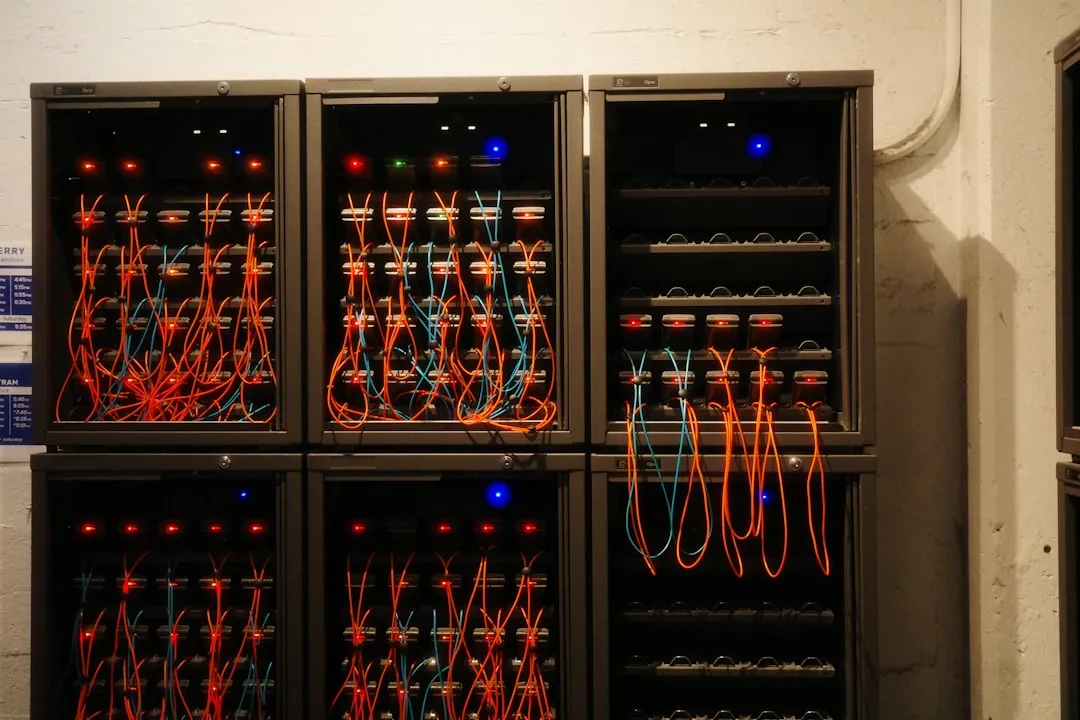
Setting up your own Network Attached Storage (NAS) server might sound like a project reserved for IT professionals, but it's actually more accessible than you'd think. With the right guidance, you can build a powerful home server that handles both automated backups and seamless content streaming across all your devices. Whether you're tired of paying monthly fees for cloud storage or want complete control over your digital media library, a DIY NAS offers the perfect blend of functionality, privacy, and long-term cost savings.
Modern NAS building has become dramatically more approachable thanks to web-based configuration interfaces, comprehensive documentation, and plug-and-play component compatibility. Unlike the command-line heavy setups of the past, today's NAS operating systems guide you through setup with visual wizards, while standardized SATA connections and tool-free cases eliminate much of the traditional hardware complexity.
Choosing the right hardware foundation
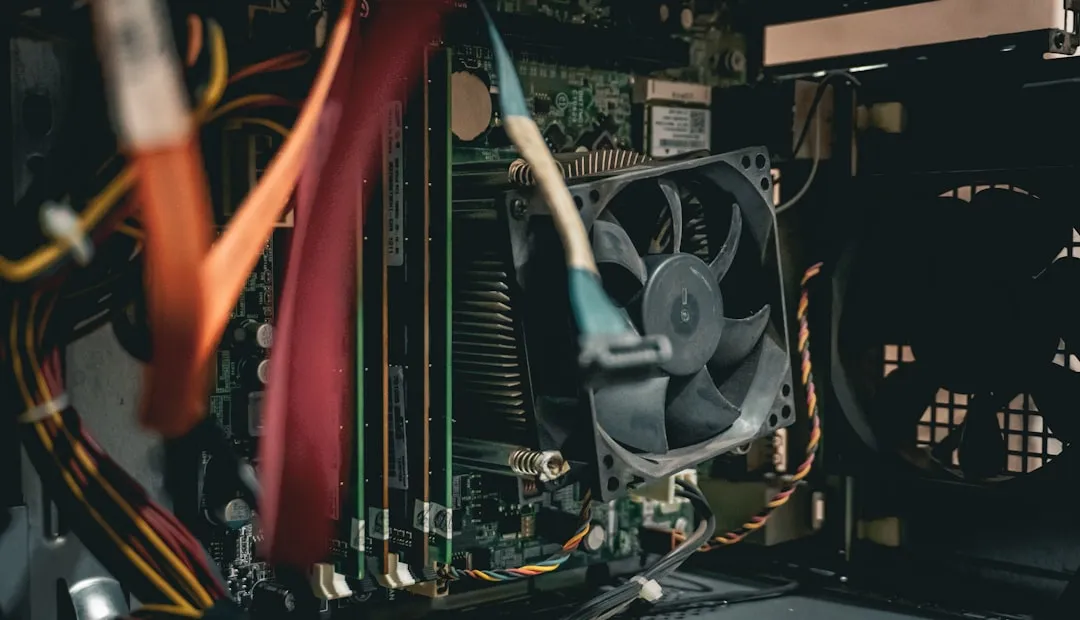
The heart of any successful NAS build starts with selecting components that match your specific needs and budget. For most home users, a low-power CPU like an Intel Celeron or AMD Ryzen embedded processor provides enough processing power for file serving and basic media transcoding without driving up electricity costs. These processors typically consume between 10-35 watts, making them ideal for a device that runs 24/7.
To put power consumption in perspective, a 25-watt NAS running continuously costs approximately $26 annually in electricity at the national average rate of 12 cents per kWh. Compare this to a repurposed desktop computer drawing 150+ watts, which could cost over $150 yearly just to operate. Energy-efficient components also generate less heat, enabling quieter cooling solutions and potentially extending component lifespan in the always-on environment.
Memory requirements vary significantly based on intended use, but 8GB serves as a practical starting point for most home setups. If you plan to run multiple services simultaneously or handle 4K video transcoding, consider upgrading to 16GB or more. The storage configuration deserves careful consideration—while you might be tempted to fill every drive bay immediately, starting with two or three drives allows room for future expansion while keeping initial costs manageable.
PRO TIP: Calculate your current storage usage across all devices before sizing your NAS. Most users discover they need less capacity than expected initially, but growth patterns vary dramatically based on media consumption and backup strategies.
Understanding RAID configurations and backup strategies
RAID arrays offer protection against drive failures, but they're not a substitute for proper backups—a distinction that trips up many first-time NAS builders. RAID 1 mirrors data across two drives, providing redundancy but limiting usable capacity to 50% of total storage. RAID 5 requires at least three drives and can survive one drive failure while offering better storage efficiency, though rebuild times can stretch 12-24 hours with modern high-capacity drives.
The rebuild time consideration becomes critical as drive sizes increase. A 4TB drive in RAID 5 might rebuild overnight, but an 18TB drive could require multiple days of intensive operation, during which the array remains vulnerable to additional failures. This reality has driven many users toward RAID 6 configurations for larger arrays, trading some storage efficiency for dual-drive failure protection.
For backup strategies, the 3-2-1 rule remains the gold standard: keep three copies of important data, store them on two different types of media, and maintain one copy offsite. Your NAS can serve as one local backup destination, but consider pairing it with cloud storage or an offsite backup drive for truly comprehensive protection. Many NAS operating systems include built-in backup tools that can automatically sync critical data to external services or other NAS devices.
Automated backup scheduling eliminates the human factor that dooms manual backup schemes. Configure your NAS to perform incremental backups during low-usage hours, with weekly full backups to external destinations. Modern backup tools can throttle bandwidth usage and pause during active streaming or work hours, ensuring protection doesn't interfere with daily use.
Selecting and configuring your NAS operating system
The operating system choice significantly impacts both functionality and ease of use, with hardware compatibility being a crucial consideration. TrueNAS CORE offers enterprise-grade features and rock-solid ZFS file system support, making it excellent for users who prioritize data integrity and don't mind a steeper learning curve. However, it demands ECC memory for optimal stability and works best with server-grade hardware components.
Unraid provides a more user-friendly approach with its web-based interface and flexible storage management, though it requires a paid license for more than six drives. Its key advantage lies in handling mixed drive sizes gracefully—you can combine 4TB, 8TB, and 12TB drives in the same array without waste. Unraid also excels at running Docker containers and virtual machines alongside storage duties.
For those preferring turnkey solutions, Synology's DiskStation Manager (DSM) delivers polished software with extensive app support, though it's typically paired with Synology hardware. OpenMediaVault strikes a middle ground with solid functionality and plugin support while remaining completely free. Setup complexity ranges from 2-3 hours for Unraid to potentially 6-8 hours for TrueNAS, depending on your configuration requirements and familiarity with the platform.
Each platform handles initial setup differently, but most guide you through drive configuration, network settings, and user account creation via web-based wizards. Consider your long-term plans when choosing—migrating between NAS operating systems later often requires complete data reconstruction.
Network configuration and remote access setup
Proper network configuration ensures your NAS integrates smoothly with your existing home network while providing secure remote access when needed. Most NAS devices work well with gigabit Ethernet connections, though enthusiasts might consider 2.5GbE or 10GbE for faster local transfers. To determine if faster networking makes sense, calculate your usage patterns: 4K video streaming requires roughly 25-50 Mbps, while backing up a laptop might sustain 200-400 Mbps on gigabit networks.
Static IP assignment prevents connectivity issues and simplifies port forwarding if you plan to access your NAS remotely. Configure your router to reserve a specific IP address for your NAS MAC address, typically in the 192.168.1.100-200 range to avoid conflicts with DHCP-assigned devices. Document this IP address and include it in your network configuration notes for future reference.
Setting up secure remote access requires careful attention to security practices. VPN connections offer the most secure method for accessing your NAS from outside your home network, creating an encrypted tunnel that protects your data during transmission. If VPN setup seems too complex, many NAS platforms offer their own remote access solutions with built-in security features, though these should be configured carefully and kept updated.
The convenience versus security balance becomes particularly important for family members who need simple access to shared files. Consider creating separate access methods: VPN for administrative tasks and platform-specific apps for basic file access, each with appropriate permission levels and monitoring.
Implementing security hardening and maintenance routines
Security shouldn't be an afterthought when setting up your NAS, especially if you plan to access it remotely. Start by changing all default passwords to strong, unique credentials and disable any unnecessary services or accounts. Enable two-factor authentication where available, and consider setting up automated security updates to keep your system protected against emerging threats. Create a security checklist that includes regular password rotation, service audits, and access log reviews.
Regular maintenance keeps your NAS running smoothly and helps prevent data loss. Schedule periodic drive health checks using built-in SMART monitoring tools, and set up email notifications for any system alerts or drive warnings. Plan for drive replacement before failures occur—most drives show warning signs through SMART data before complete failure, typically including increased reallocated sectors, pending sectors, or unusual temperature patterns.
Establish a maintenance calendar with monthly drive health reviews, quarterly backup restoration tests, and semi-annual security audits. Keep your NAS firmware updated, maintain current backups of your configuration settings, and periodically test your backup and recovery procedures to ensure they work when needed. Create documentation that includes your configuration choices, network settings, and troubleshooting steps for common issues.
PRO TIP: Set up monitoring alerts for drive temperature, available storage space, and backup job completion status. Many catastrophic failures can be prevented with early warning systems and proactive replacement strategies.
Where do we go from here?
Building your own NAS server opens up a world of possibilities beyond simple file storage and media streaming. As you become more comfortable with your setup, you might explore additional services like home automation hubs, personal cloud synchronization, or even virtual machine hosting. The key is starting with a solid foundation and gradually expanding functionality as your needs grow.
Advanced projects might include setting up automated media acquisition and organization, running a personal VPN server, hosting development environments, or creating isolated network segments for IoT devices. Each expansion should build logically on your established infrastructure while maintaining system stability and security standards.
Remember that the best NAS is one that reliably serves your specific requirements without unnecessary complexity. Take time to properly plan your build, invest in quality components where it matters most, and don't skip the security and backup planning phases. With careful setup and regular maintenance, your DIY NAS will provide years of reliable service while giving you complete control over your digital life.
Bottom line: start with a configuration that handles your immediate needs comfortably, implement robust backup and security practices from day one, and document everything for future reference. Your future self will thank you when expansion or troubleshooting becomes necessary.






Comments
Be the first, drop a comment!