



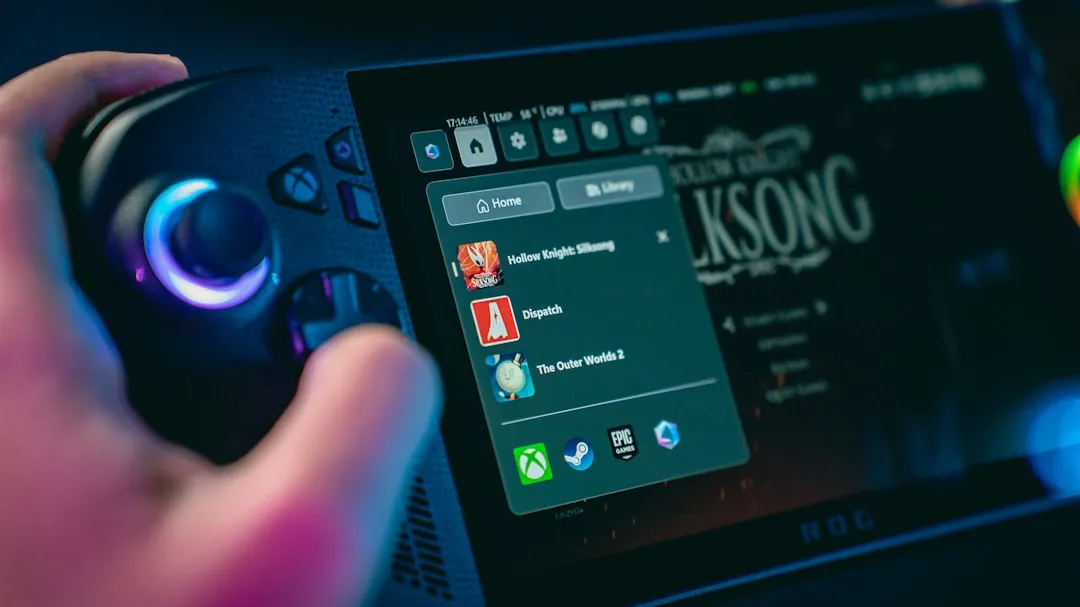
How to play Steam games on PS5: Linux setup guide
Short answer: This works only on disc-based PS5 consoles running firmware 3.xx or 4.xx, by booting Ubuntu through an exploit published today. If your console doesn't match those two conditions, nothing in this guide applies to you yet.
Developer Andy Nguyen published the full installation steps on GitHub this week, and the results are concrete: GTA V running with enhanced ray tracing at 60fps, and Spider-Man at 1440p/60fps, both demonstrated on PS5 hardware running Ubuntu, per The Verge. The same hardware Sony sold as a locked console, playing PC games through a Linux environment configured with custom VRAM allocation and working fan controls.
This is a soft mod with real constraints. It resets on every reboot, reaches a narrow slice of PS5 owners, and requires genuine comfort with Linux command-line work. What it delivers, how to set it up, and whether the trade-offs make sense for your situation is what this guide covers.
How to play Steam games on PS5: two realistic paths
Before touching any installation steps, understand what you're actually building toward. The answer differs depending on what hardware you already own.
Path 1: Native Linux gaming on the PS5
With Ubuntu running, the PS5 operates as a Linux PC. The AMD GPU gets proper VRAM allocation and fan control configured, per The Verge, making this a functional gaming environment rather than an unstable desktop. Steam installs from the Ubuntu package manager, and once it's running, you have access to the same Linux gaming stack available on any Ubuntu machine, including Valve's Proton compatibility layer for Windows-only titles.
Confirmed performance: GTA V at 60fps with ray tracing, Spider-Man at 1440p/60fps. Output is capped at 60Hz across 1080p, 1440p, and 4K; Nguyen notes that 120Hz or 30Hz may be added down the road, per The Verge. Broader Steam library compatibility beyond those demonstrated titles is unverified, and multiplayer titles relying on anti-cheat systems that haven't whitelisted Linux will not work.
If you don't own a gaming PC, this path is the point.
Path 2: PS5 as a streaming client for a gaming PC
If a gaming PC is already on your network, a second option exists in principle, with a significant caveat. A PS5 running Ubuntu could run Moonlight, the open-source GameStream client that supports Linux, connected to a Sunshine server on the gaming PC. Sunshine supports hardware encoding on AMD, Intel, and Nvidia GPUs with low-latency streaming, per the Sunshine GitHub project. Moonlight handles gamepad support with force feedback and motion controls for up to 16 players, per the Moonlight GitHub project. The PC renders everything; the PS5 handles display and input only, which would make the PC's full game library accessible through the PS5, including Windows titles Proton can't touch.
The caveat: Moonlight running on PS5 Linux specifically has not been confirmed in public documentation. The technical components are compatible on paper, but treat this as a path to verify through the project Discord before building your setup around it.
What this project is not: The exploit does not enable homebrew execution, game backups, or piracy. It does not open the PS5 the way the PS4 was opened on comparable firmware, per The Verge. Nguyen's project does one thing: boots Linux and steps aside. The separate PS5 homebrew ecosystem built around tools like etaHEN and ItemzFlow serves a different goal entirely. Don't conflate them.
Prerequisites: confirm these before doing anything else
- Disc-based PS5 only. The digital edition has no supported path.
- Firmware must be exactly one of these builds: 3.00, 3.20, 4.00, 4.02, 4.03, 4.50, or 4.51, per the PS5Dev UMTX GitHub repo. "3.xx" in shorthand does not mean every build in that range is confirmed. Check your exact version number before proceeding.
- Firmware 5.xx is not currently supported for this Linux method, per The Verge.
- Disable automatic firmware updates right now: Settings → System → System Software → System Software Update and Auto-Download. One automatic update ends eligibility permanently. Do this before anything else.
- A USB drive formatted and loaded per repo specifications, a network connection for payload delivery, a display supporting at least 1080p, and comfort with Linux command-line work.
Step-by-step: install Linux on PS5 and run Steam
Full documentation lives on Nguyen's GitHub repository, with a project Discord for troubleshooting. Read the actual repo before starting. The steps below cover the structure and the points most likely to cause problems.
Step 1: Prepare the USB payload. Download the required files from the GitHub repo. Format the USB drive exactly as specified. File system format matters, so confirm that before copying anything over.
Step 2: Trigger the exploit through the PS5's browser. Navigate to the exploit URL specified in the repo using the PS5's built-in browser. This chains a WebKit-level vulnerability with the UMTX exploit, a kernel flaw in the FreeBSD-derived software underlying the PS5's operating system, to achieve kernel read/write access, per the PS5Dev UMTX repo. The exploit achieves memory access, not code execution directly; the Linux payload delivery that follows is what turns kernel access into a usable environment. Expect to run this multiple times. Failed attempts are normal, not a sign of hardware incompatibility.
Step 3: Send the Linux payload over your local network. Once kernel access is established, an ELF loader listens on port 9021, per the PS5Dev UMTX repo. Send the Ubuntu payload over TCP per the repo instructions. VRAM allocation and fan control configuration apply automatically at this stage, which is what makes the result a functional gaming environment rather than a thermal mess.
Step 4: Fix networking after first boot. When Ubuntu loads, immediately disable the WLAN adapter, then re-enable it. This documented quirk is required to establish a full internet connection, per The Verge. Trying to install packages or reach Steam before completing this step will waste time.
Step 5: Install your chosen software. With networking confirmed working, install Steam from the Ubuntu package manager for native gaming. For the streaming path, install Moonlight and pair it with Sunshine on the gaming PC, keeping in mind the unconfirmed status of that specific configuration on PS5 Linux.
One operational reality to accept before starting: Linux does not persist through a power-down or restart. Every session requires re-running the exploit from Step 2, per The Verge. Nguyen is exploring a rest-mode feature that would let Linux relaunch without the full re-exploit loop, but it's not available yet. Decide whether that friction is acceptable now, not at 11pm when the console resets mid-session.
Why this stays niche, and what would change it
The firmware gate is structural, not a temporary gap waiting to be filled. The exploit chains for 3.xx and 4.xx work because the WebKit entry point they rely on was still open on those builds. Sony patched it at firmware 6.00, per the PS5Dev UMTX repo. The underlying UMTX kernel vulnerability technically spans firmware 1.00 through 7.61, but reaching it on 6.00 or later requires a new WebKit exploit that doesn't currently exist. Firmware 5.xx sits in a specific gap: the vulnerability is present, but no complete Linux-capable chain exists for those builds yet.
Sony actively monitors the exploit scene and patches vulnerabilities when found. A countermeasure introduced in September 2024 tied license restoration to currently installed games, limiting external backup loading on jailbroken consoles, per GBAtemp's overview from last year. The developer community has kept pace, the UMTX discovery itself being the clearest example, but the coverage gaps are real and the addressable install base for this project does not grow until someone finds a new WebKit entry point.
On PSN access and ban risk: No documented analysis of these risks during Linux sessions exists in public research. Keep the console offline during Linux use if your PSN account matters to you.
Three things would meaningfully expand who this reaches: rest-mode persistence eliminating the per-session re-exploit requirement, 120Hz output support, and a WebKit entry point covering 5.xx firmware. None are available today. The GitHub repo and project Discord are the right places to track movement on all three.
Who should try this
- Disc-based PS5 on 3.xx or 4.xx firmware, no gaming PC: Worth trying. Demonstrated performance is real, 1440p/60fps from hardware that was sold as a locked console, per The Verge. Go in with Linux command-line comfort, accept the per-session re-exploit loop, and verify broader game compatibility as you go.
- Same eligibility, gaming PC already on the network: The Moonlight/Sunshine streaming path could extend access to the PC's full library, beyond what native Linux gaming covers. Confirm that configuration works on PS5 Linux through the project Discord before committing to it.
- Firmware 5.xx, any digital PS5, or current firmware: Nothing here applies yet. Check the repo when new exploit work reaches 5.xx, or when rest-mode persistence changes the daily usability picture.
Valve spent years and real money building couch Linux PCs that shipped slow, cost too much, and never found an audience. This project ships as a GitHub repo, requires specific old hardware, and resets on every reboot. It also runs GTA V with ray tracing at 60fps on a console Sony never intended to run PC games. One developer did that. The gap between impressive and practical comes down to persistence and firmware coverage, both of which are on the roadmap. Follow the repo.













Comments
Be the first, drop a comment!