





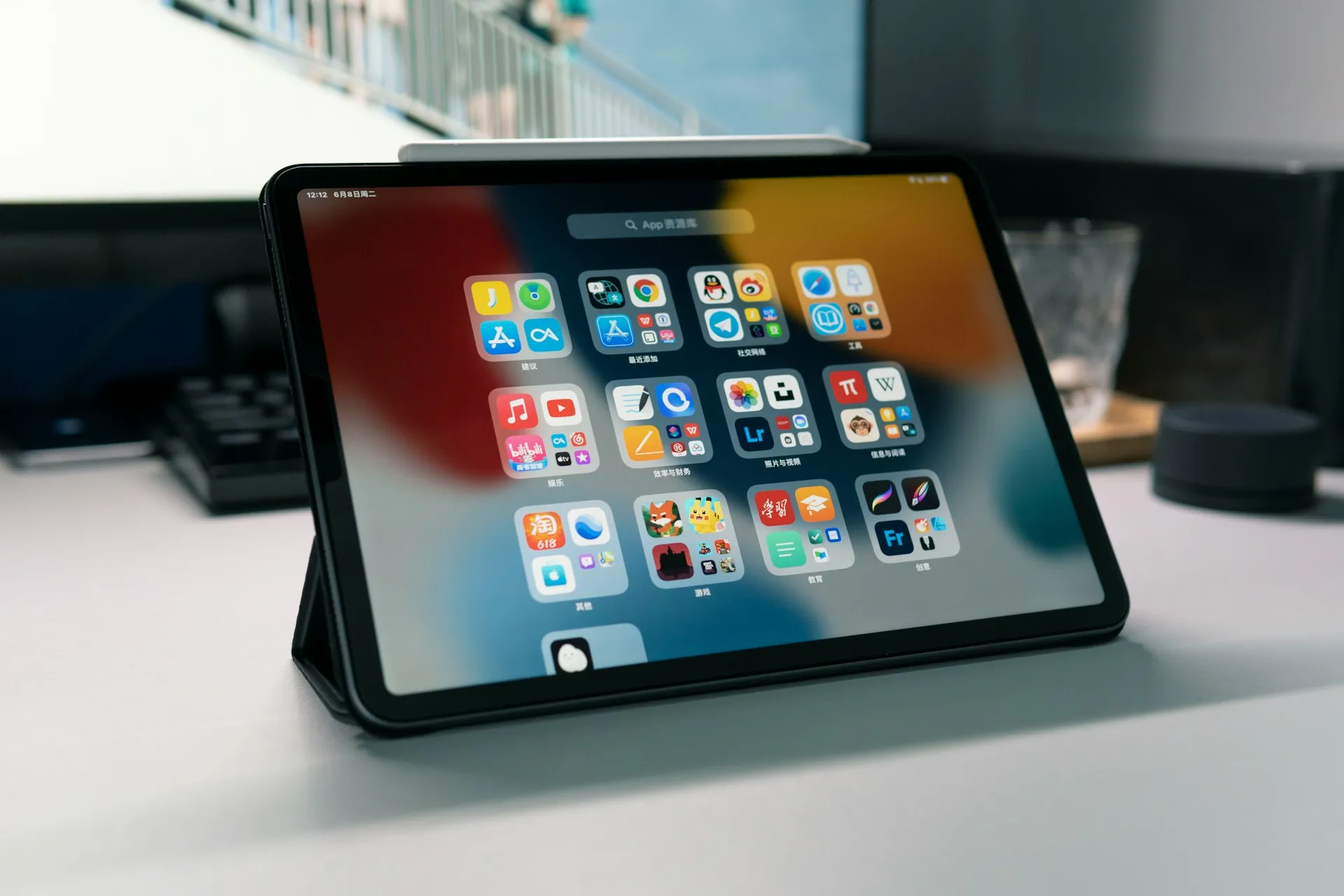
The Nintendo Switch is a fantastic portable gaming console, but sometimes you want a bigger screen without being tethered to your TV. What if I told you that your iPad could serve as that perfect middle-ground display? With a simple USB-C setup and the right capture adapter, you can transform your tablet into a portable gaming monitor that's larger than the Switch's built-in screen but more flexible than your living room setup.
This approach leverages USB Video Class (UVC) technology, which allows your iPad to recognize external video sources through compatible apps. The setup requires minimal hardware investment—typically between $30-80 for a quality capture adapter—and opens up new possibilities for gaming on the go, whether you're traveling, want to game while someone else uses the TV, or simply prefer the iPad's superior display quality for your favorite Nintendo titles.
What you'll need to make this work
Let's break down the hardware essentials for this setup. The foundation of this configuration relies on a USB-C UVC capture adapter, which acts as the bridge between your Nintendo Switch and iPad. These compact devices convert the Switch's video output into a format that your iPad can recognize and display through specialized apps.
Here's what you need to know about iPad compatibility: Your iPad needs to support USB-C connectivity, which means you'll need an iPad Pro (2018 or later), iPad Air (4th generation or later), or iPad mini (6th generation). These specific models are required not just for the USB-C port, but also for their advanced processing capabilities—the A12X Bionic chip or newer provides the computational power needed for smooth real-time video decoding without stuttering.
If you're still rocking one of the older iPads with Lightning ports, unfortunately this direct connection method won't work for you, though there might be alternative wireless solutions worth exploring down the line.
For the capture adapter itself, you'll want to look for devices that specifically mention UVC compatibility and support 1080p video passthrough. Popular options include basic UVC adapters in the $30-50 range for casual gaming, or higher-end models with dedicated processing chips in the $60-80 range for more demanding use. The adapter should have HDMI input for connecting to your Switch dock and USB-C output for connecting to your iPad. Some models also include passthrough charging, which is incredibly handy for longer gaming sessions since you can power your iPad while playing.
Pro tip: Look for adapters that specifically advertise "low latency" or "real-time" processing—these typically perform better for gaming applications where every millisecond matters.
Setting up the hardware connection
The physical setup is refreshingly straightforward once you have the right components. Connect your Nintendo Switch to its dock as you normally would, then run an HDMI cable from the dock to your UVC capture adapter's input port. From there, use a USB-C cable to connect the adapter to your iPad. It's really that simple from a connection standpoint.
Now, here's something important to consider: power management. The video decoding process can drain your iPad's battery significantly faster than normal use—expect roughly 2-3 hours of gaming time compared to the usual 8-10 hours of typical iPad usage. Having a way to charge while playing becomes essential for anything more than short gaming sessions. Some UVC adapters include USB-C passthrough charging, but if yours doesn't support this feature, you might need to invest in a USB-C hub with power delivery capabilities.
For audio routing, you have several reliable options. Most UVC setups will automatically route audio through your iPad's speakers along with the video signal. If you prefer headphones, you can connect them directly to your iPad for the cleanest audio experience. Alternatively, wireless headphones paired with the Switch itself work well, though you'll need to manage the Switch's audio settings to ensure proper output while docked.
Choosing and configuring the right UVC app
Your iPad needs a UVC-compatible app to receive and display the video signal from your capture adapter. The App Store offers several solid options, each with different strengths depending on your priorities.
For dedicated gaming use, apps that prioritize real-time display over recording features typically deliver the best performance. Look for options that offer full-screen modes to maximize your gaming real estate—after all, the whole point is getting that bigger display experience.
When evaluating apps, pay close attention to latency performance, resolution support, and display customization options. Gaming requires minimal input lag, so apps with hardware acceleration capabilities will serve you better than those relying purely on software processing. The difference becomes especially noticeable in fast-paced games where split-second reactions matter.
Configuration settings within your chosen app can significantly impact your overall gaming experience. Enable hardware acceleration if available, set the display to full resolution, and customize the aspect ratio to match your preferences. Some apps also allow you to fine-tune color settings, though you'll generally want to keep these minimal for gaming to maintain accurate visuals and avoid any additional processing delays that might increase latency.
Managing latency and performance expectations
Input latency is absolutely the most critical performance factor when using your iPad as a Switch display. The video signal needs to travel from the Switch through the dock, capture adapter, and iPad app before reaching your eyes, while your controller inputs go directly to the Switch. This setup typically introduces an additional 50-100ms of delay compared to playing directly on the Switch screen or a dedicated gaming monitor.
The quality of your capture adapter significantly impacts latency performance, and this is where you might want to invest in something decent rather than going for the absolute cheapest option. Higher-end adapters with dedicated video processing chips generally offer latency in the 50-70ms range, while basic models that rely more heavily on software processing might introduce 80-120ms delays.
Your iPad's processing power also plays a crucial role. The M1 iPad Pro handles video decoding most efficiently, followed by iPad Air models with A14/A15 chips, then older iPad Pro models with A12X/A12Z processors. The newer your iPad, the smoother your gaming experience will be.
Here's a pro tip: close other apps and ensure your iPad has at least 5GB of free storage to help optimize performance during gaming sessions. This prevents background processes from competing with the video decoding task.
Game type recommendations: Turn-based games, RPGs, and puzzle games work excellently with this setup. Fast-paced fighting games or competitive shooters might feel less responsive due to the inherent latency, though many players find it perfectly acceptable for casual play.
Exploring handheld and alternative configurations
You might be wondering about using this method with the Switch in handheld mode, and unfortunately, this is where we hit a fundamental limitation. The Switch doesn't output video through its USB-C port when it's undocked—Nintendo designed it this way to preserve battery life and processing power for the built-in display.
For truly portable gaming on a larger screen, wireless solutions exist but come with trade-offs. Wireless HDMI transmitters can work with the docked Switch, though these typically introduce additional latency (often 100-200ms) and require separate power sources for both the transmitter and receiver components.
Another interesting angle is using your iPad alongside the Switch for enhanced functionality rather than as the primary display. While most Switch games don't offer companion app features, you can use your iPad for game guides, maps, or community features while playing on the Switch's own screen. It's not the same as having the main game display, but it can add some interesting functionality to your overall gaming setup.
Making the most of your iPad gaming display
Once you have the technical setup working smoothly, you can start optimizing the experience for different types of games and gaming scenarios. The iPad's display technology often provides superior color reproduction and brightness compared to many budget and mid-range TVs, which can really enhance visually rich games like The Legend of Zelda: Breath of the Wild or Super Mario Odyssey with their detailed artwork and vibrant color palettes.
Consider your gaming environment when using this setup. The iPad's portability means you can game in locations where setting up near a TV isn't practical—think hotel rooms, outdoor spaces, or even just a different room in your house. A quality tablet stand or adjustable mount can help you achieve the perfect viewing angle while keeping your hands free for controller use.
This configuration also opens up creative multiplayer possibilities. You can dedicate the iPad as a display for one player while others use the TV, or easily rotate the tablet to share the screen in cooperative games. The iPad's form factor provides viewing flexibility that traditional gaming monitors simply can't match.
Pro tip: For games with lots of text or UI elements, the iPad's sharp display can actually make these easier to read than on many living room TVs, especially if you're sitting at an appropriate distance.
Where this setup fits in your gaming toolkit
This iPad-as-display method represents a compelling middle ground between the Switch's 6.2-inch built-in screen and traditional TV gaming. While it does require additional hardware investment ($30-80) and introduces some complexity, it offers unique advantages in terms of display quality, portability, and flexibility that make it worthwhile for specific gaming scenarios.
The setup works best for gamers who already own a compatible iPad and are looking to expand their gaming options without investing in a dedicated portable monitor (which typically costs $150-300). It's particularly valuable for travel, shared living spaces, or situations where you want a premium display experience without the constraints of a fixed TV setup.
You'll get the most value from this approach if you frequently find yourself wanting to game while the TV is occupied, enjoy playing in different locations around your home, or simply appreciate the visual upgrade that a high-quality iPad display can provide for your favorite Nintendo titles.
As capture technology continues to improve and iPad capabilities expand, this type of hybrid gaming setup will likely become even more practical and appealing. For now, it offers a compelling way to bridge the gap between portable and console gaming, giving you the best aspects of both worlds with hardware you might already own. Bottom line: if you've got a compatible iPad and you're curious about expanding your gaming flexibility, this setup is definitely worth experimenting with.

Comments
Be the first, drop a comment!